How to Create and Scan Spotify Codes
In Short
- Spotify Codes are like QR codes that embed any content inside the service's library.
- To create a Spotify code, head over to the content you want to share > 3-dots icon > Show Spotify Code > Save to photos.
- You can generate Spotify codes for songs, artist profiles, albums, or even entire playlists.
There’s no denying that Spotify is the leading music streaming service in the market. That’s because most people prefer the platform over other services. Thanks to its cross-platform availability, it’s convenient for Spotify users to share songs with their friends and family. While you can share songs via links like you would with any other content, Spotify does offer a neat little trick to share songs, artists, albums, or even an entire playlist. This is called Spotify Codes, and in this read, we’ll give you a rundown on how to create and scan Spotify Codes to make sharing songs more fun.What are Spotify Codes?
Spotify codes are kind of like QR codes, but they only work on Spotify. In essence, they would appear like bar-shaped waves that you may think are soundwaves of the song. However, they’re URI codes that embed links to songs, albums, artist profiles, and even playlists. This means, you can create Spotify Codes for any kind of content that’s shareable on Spotify.
The service lets you natively generate Spotify codes using the Spotify apps on Android and iPhone. But, you’ll have to go to the Spotify Codes website with a link to the content you want to share, if you’re doing so from the service’s desktop app or web player. When you create Spotify codes, others can scan your share codes using the Spotify app to listen to those tracks right away.
How to Create Spotify Codes
You can create Spotify codes natively on Spotify’s mobile apps on Android and iPhone. However, on a desktop, you’ll need to use the service’s Spotify Codes website to generate the same. We’ll explain both of these methods in detailed steps below.
Accessing the Spotify code is fairly straightforward on Spotify’s mobile app. Here’s how to do it:
- Launch Spotify and find a song, album, or playlist that you want to create a code for.
- When you locate it, tap on the 3-dots icon on the right.
- From the list of options, scroll down and select Show Spotify Code.
- Spotify will now generate the code for your selection underneath the album. You can tap on Save to photos.
That’s it. The Spotify code will be accessible on your phone’s library, and you can share it with others across other apps.
If you prefer using Spotify on a PC, you can create and share Spotify codes in a similar fashion on both the desktop app and its website. Here’s how to do it.
- Open the Spotify app on Windows or macOS, or launch Spotify (website) on a web browser.
- Locate the song, album, or playlist for which you want to create a code.
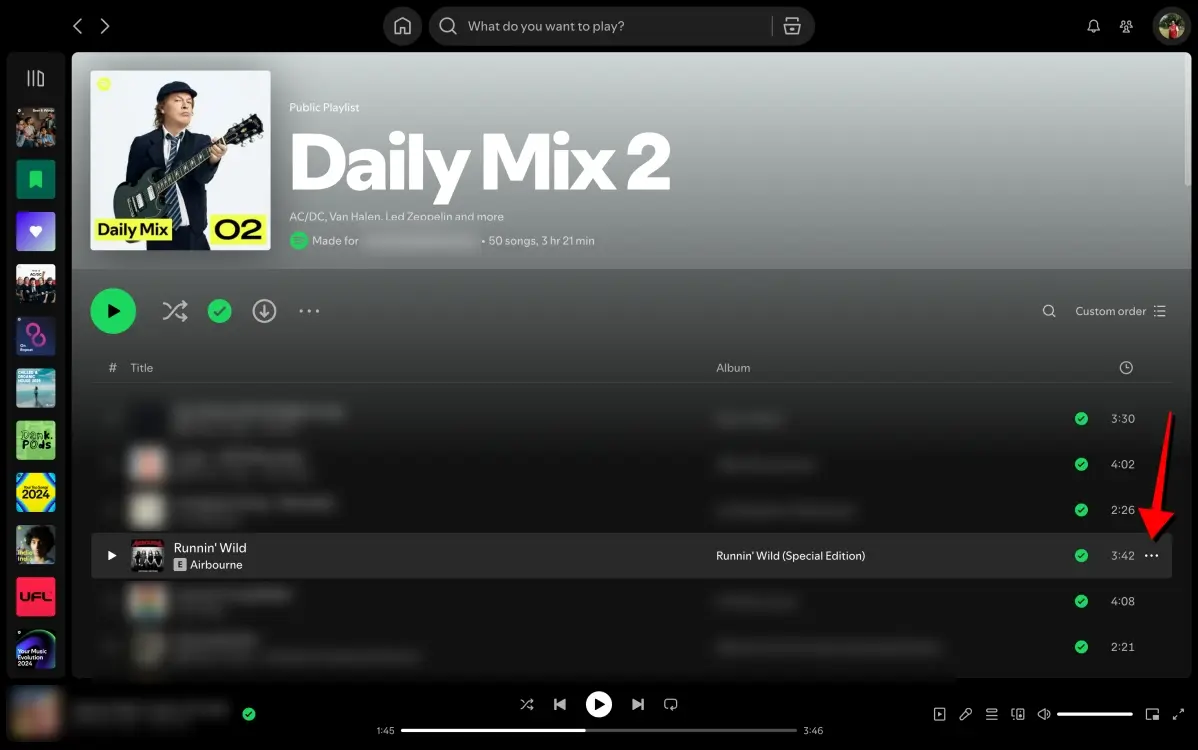
- When you find it, click on the 3-dots icon at the top (for a playlist or album) or hover over a track and then click on the 3-dots icon on the right side (of a song’s listing).
Tags
About author

admin
I'm a Flutter developer with three years of experience building cross-platform mobile applications. I specialize in creating responsive, high-performance apps with clean and maintainable code. My expertise spans state management, API integrations, and UI/UX design, ensuring a seamless user experience on both Android and iOS platforms.
You may also like

Popular Posts



Scroll to Top